Complete device pairing
The intended child device should already be connected to the correct family profile.
Android setup · Permissions
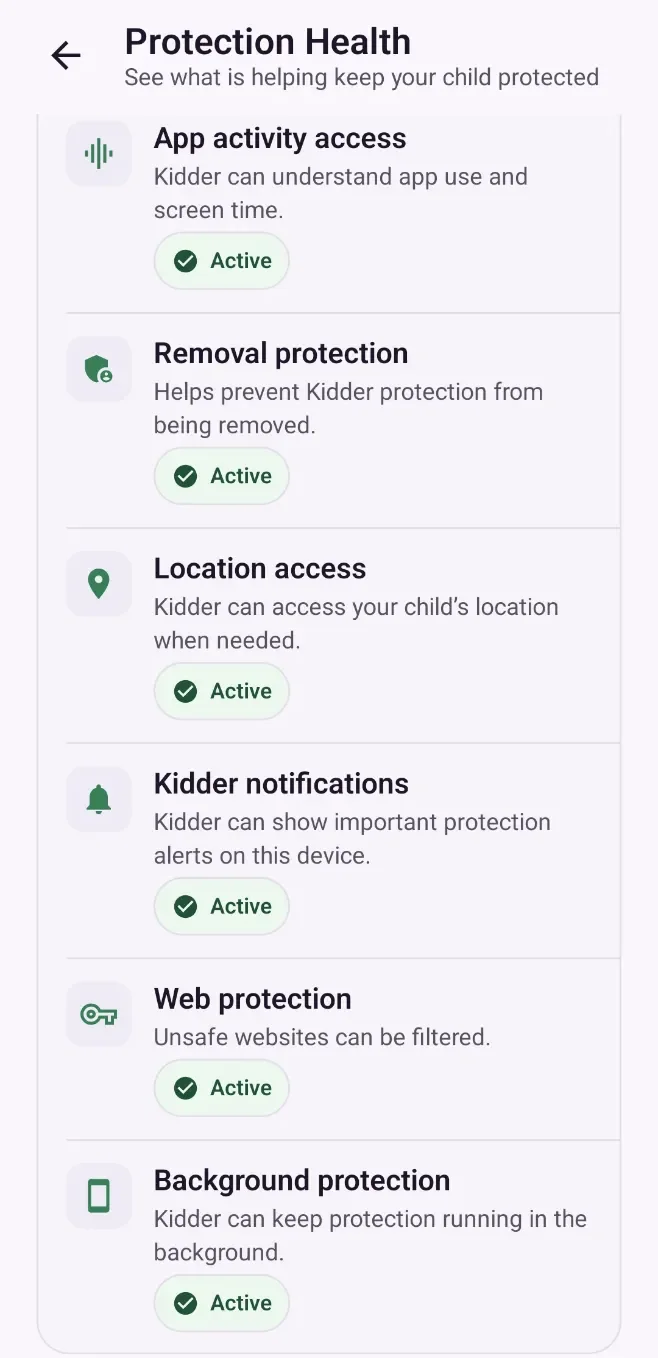
Review the Android access Kiddar presents, connect it to the selected family feature, and confirm the protection experience is ready without treating permissions as a hidden technical step.
Before this step
The intended child device should already be connected to the correct family profile.
Some choices are reviewed on the child device while status is visible to the parent experience.
Explain which family feature is being prepared and why the related access matters.
Understand the access
Read each purpose before enabling access. Usage Access and AccessibilityService support core parental controls; other requests depend on Android and the features being prepared. The app determines the current checklist.
Allows Kiddar Child to read app usage events and durations for Screen Time summaries, app limits and routines. Review the request, enable Kiddar Child in the Usage Access setting shown by Android, then return to the app.
Kiddar Child uses Android AccessibilityService for Parent-authorized parental-control enforcement, including app/settings navigation signals. It can access limited visible, editable or search text and website/domain information exposed through supported browser interfaces. Content Safety text is processed locally; selected app/security, blocked-domain and derived safety events may be reported to Kiddar for the linked Parent.
Android VpnService supports DNS-based parental-control filtering, not a general-purpose VPN. In the verified Kiddar Child 1.0 (version code 5) implementation, permitted queries go to Cloudflare Families using encrypted DNS-over-HTTPS. Cloudflare processes domains and associated network information. This transport verification does not cover older installed versions; selected blocked-domain reports use a separate Kiddar service path.
Location access and Android device Location support the family map, requested refresh and location features. Review precise-location access where Android offers it. Background access is a separate request; follow the app explanation for the features you choose.
With Parent or guardian authorization and the required Android location permissions, Kiddar Child can access location for Safe Place arrival and departure alerts, including when Kiddar Child is closed or not in use. Review the permissions for the location features your family chooses.
Device Administrator helps maintain parent-authorized protection. Activate it only after reading the Kiddar Child explanation and Android notice. It can add steps when disabling or removing protection; it is not a promise that removal is impossible.
Notifications provide visible protection status, family alerts and active service information. Display over other apps supports family-rule blocking and protection or recovery screens. Battery and background-operation guidance helps protection keep running. These are different settings: follow only the requests shown for your setup and device, then return to Kiddar Child. Do not enable unrelated notification-reading access on the assumption that it is required.
The Kiddar Child Privacy & Protection Notice explains access, reporting and version-specific transport details. This website guidance does not replace in-app prominent disclosure or Android permission consent.
Read Child PrivacyStep by step
Android labels and settings paths can vary by device. Read the wording shown on the device in front of you.
Before responding to an Android request, review the explanation Kiddar presents for the selected capability.
Use the permission or device-setting path shown on the child device. Names and locations can vary by device.
Return from Android Settings to Kiddar Child and check whether the requested access is recognized. Permission labels and the order of requests vary with Android, enabled features and app version; follow the prompts rather than enabling every possible access.
After the requested permissions, let Kiddar Child finish its protection check. Recheck the correct Child profile and device status in Kiddar. A saved profile or pairing code alone does not prove a successful, ready connection.
What you should see
The parent experience should show the child device status, while the child device should indicate that the selected setup is complete or name the remaining action.
If it does not work
Return to its explanation and review the related Android setting. Kiddar should identify when the feature cannot be prepared without the relevant access.
Return to Kiddar after changing the Android setting, keep the device connected, and review the displayed status again.
Pause setup and review Privacy & Transparency before deciding whether to continue.
Still need help? Contact Kiddar support. Include the app version, Android version and the step that stopped. Do not send passwords, Parent PINs, pairing codes or unnecessary child information.