Keep both devices nearby
The parent and child Android devices should remain available throughout pairing.
Android setup · Pair devices
Pair the child Android device with the intended Kiddar family profile, verify the match on both devices, and continue only when the connection is clear.
Before this step
The parent and child Android devices should remain available throughout pairing.
Know which Kiddar family profile should receive the child device.
Use a stable internet connection and keep Kiddar open during the pairing flow.
Step by step
Android labels and settings paths can vary by device. Read the wording shown on the device in front of you.
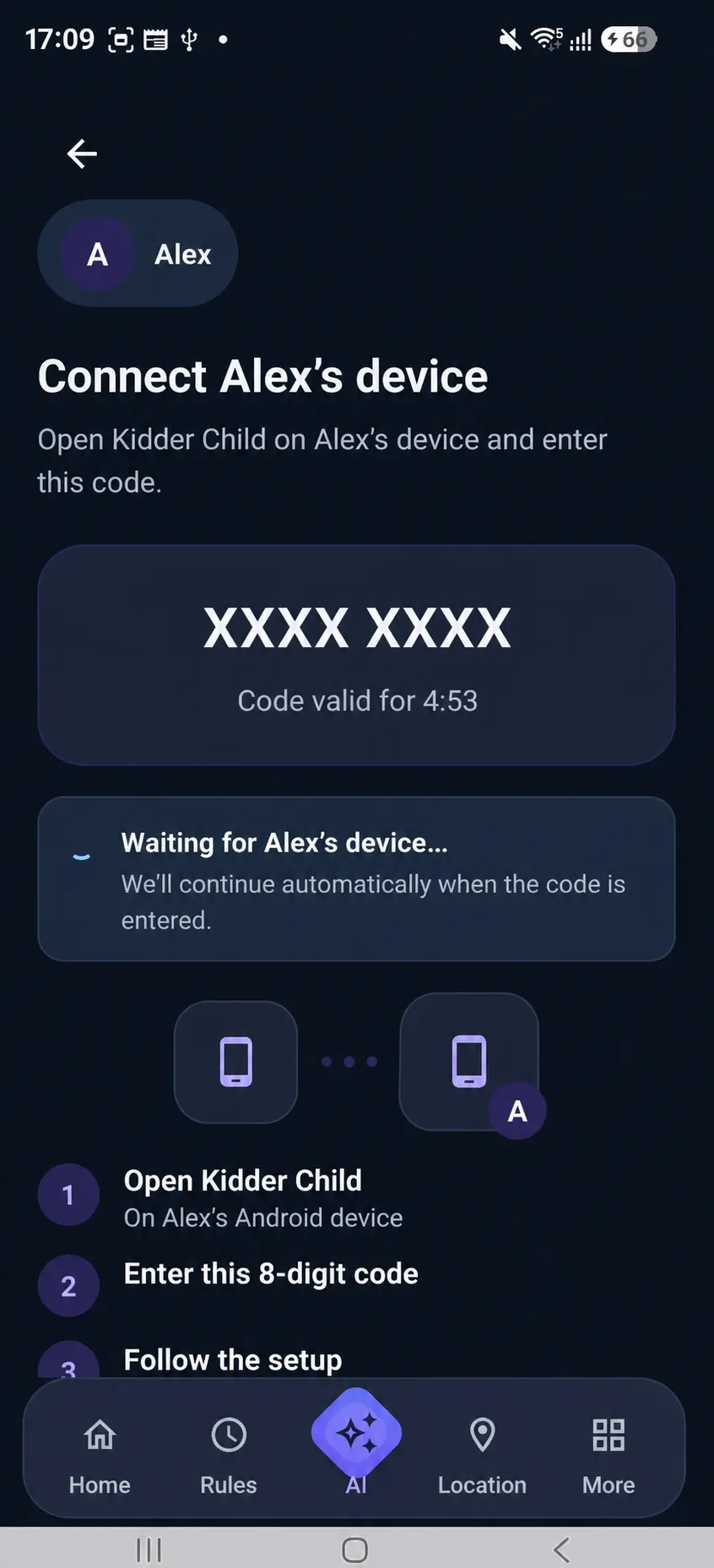
In Kiddar on the parent phone, select the intended Child profile and open its device connection flow. Check the child name before using the code shown there.
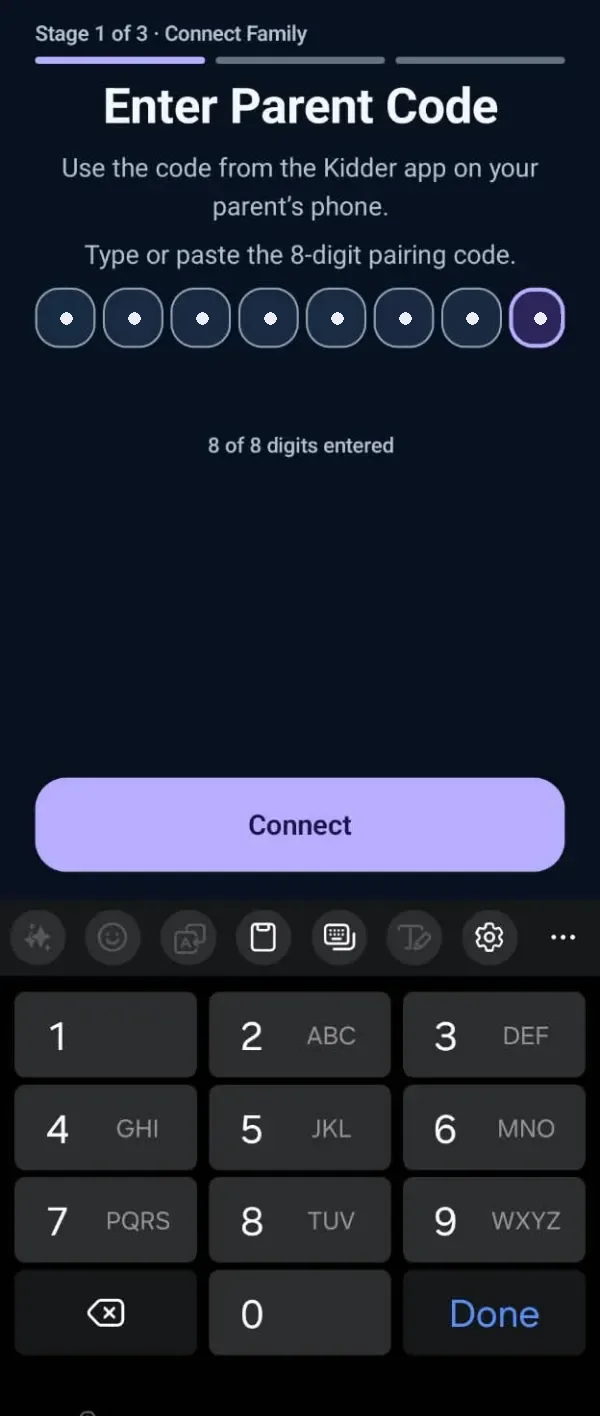
On the child phone, open Kiddar Child and continue to Enter Parent Code. Keep both devices online; the code comes from Kiddar on the parent phone.
Type or paste the 8-digit code from Kiddar into Enter Parent Code in Kiddar Child, then select Connect. This is not the 6-digit Parent PIN. Use the expiry shown in Kiddar; if it expires, request a new code from the parent device.
Wait for successful pairing confirmation rather than assuming that entering a code worked. Check the intended Child profile and connected device in Kiddar. Continue through Kiddar Child permission review and the protection check before treating setup as complete.
What you should see
Confirm the correct child and device in Kiddar and successful pairing in Kiddar Child. Pairing confirmation does not mean all permissions or protections are ready. Review permissions next, then check the final device status again.
If it does not work
Check internet access on both devices and the code expiry shown in Kiddar. If the code is expired or rejected, use the new-code action offered on the parent phone, then enter that current code in Kiddar Child. Do not repeatedly tap Connect while a request is pending.
Do not continue. Return to the parent experience and select the intended child profile before restarting pairing.
Reopen the app on the respective device and inspect its current state before trying again. If the intended device is already connected, continue to permissions; otherwise return to the displayed pairing flow. Do not delete profiles or reinstall apps as a first step.
Still need help? Contact Kiddar support. Include the app version, Android version and the step that stopped. Do not send passwords, Parent PINs, pairing codes or unnecessary child information.