
School Time
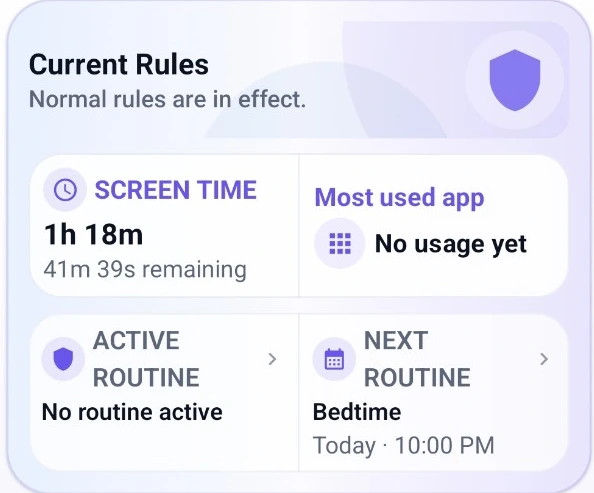
Create a clear period for learning and focused activity. The active routine is visible in Kiddar Child so the expectation stays understandable.
Family routines
Kiddar helps families make Screen Time, focus during school hours, entertainment, and rest more predictable—without turning every boundary into a punishment.
Why balance is difficult
School days, weekends, homework, creative time, and entertainment all ask for different boundaries.
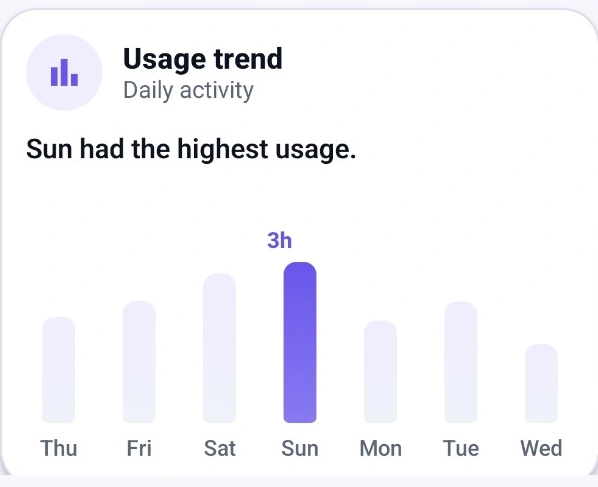
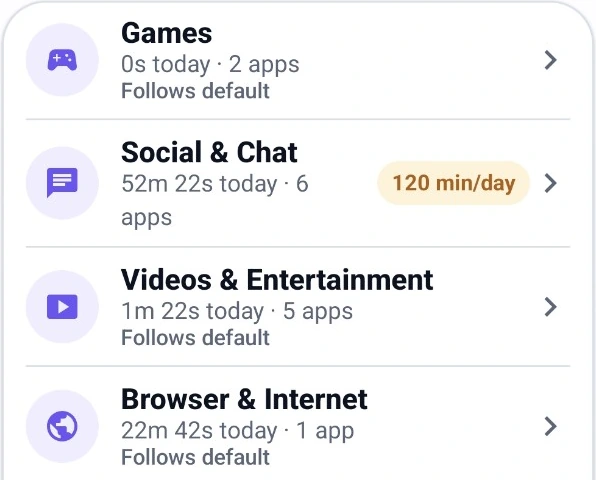
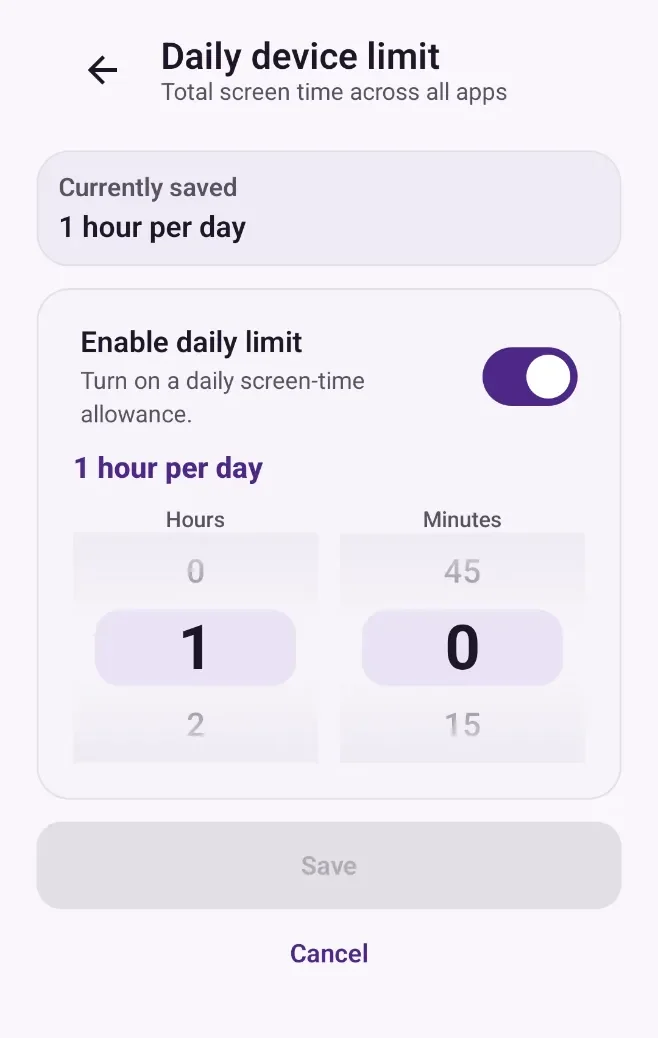
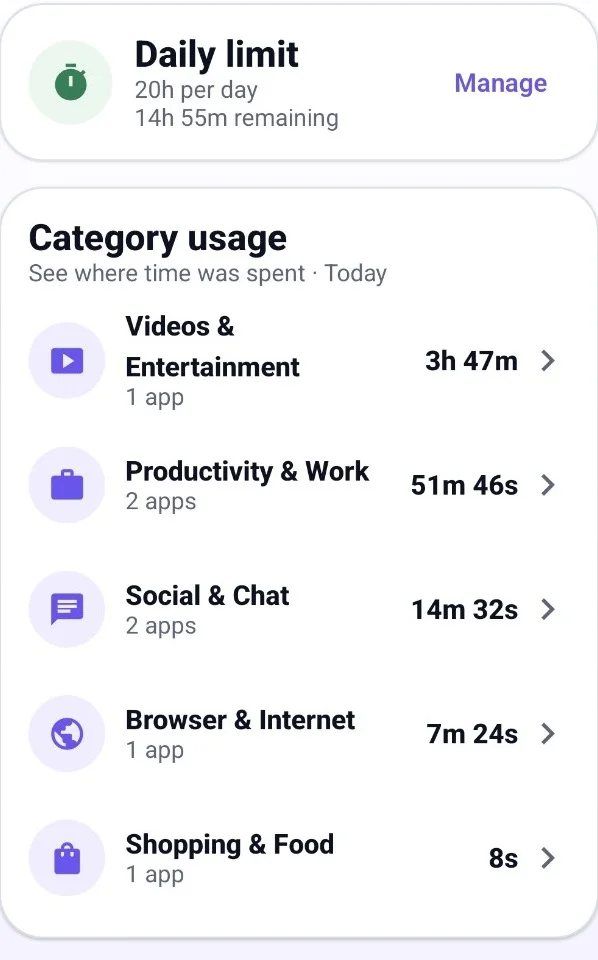
In the Kiddar parent app you can review Screen Time by app and category, set a Daily device limit, add app and category limits, schedule routines such as School Time and Bedtime, and grant Extra Time when plans change. These rules apply on the child’s Android device while the related Android permissions stay active.
Screen Time
The Screen Time views and category totals help families compare daily activity, notice patterns, and revisit expectations with real context.
App & Category Rules
Set rules for individual apps and categories—games, entertainment, social, and more—so boundaries fit the day rather than interrupting it.
Predictable routines
Create a clear period for learning and focused activity. The active routine is visible in Kiddar Child so the expectation stays understandable.
Make free-time expectations visible instead of deciding again every day. Recurring schedule times reduce daily negotiation.
Let the day wind down with a boundary children can anticipate. Routines can be reviewed and adjusted when plans change.
Routines repeat according to the family's configured days and times. Review the active routine in Kiddar and adjust as the household rhythm changes.
Device Daily Limit
Device Daily Limit sets an overall usage ceiling for the connected child device—separate from individual app or category rules. When a child reaches the daily limit, the device experience reflects the family boundary.
Device limit availability depends on correct setup, permissions, and device connectivity.
Extra Time
Families can allow Extra Time from the parent experience when the situation calls for it—homework runs long, plans shift, or a special occasion calls for an exception. Extra Time is a parent-initiated choice, not an automatic override.
Device Lock
Device Lock gives parents a way to pause device access from Kiddar when the moment calls for it—dinner, bedtime, or a family conversation. The experience on the child device reflects the locked state.
Accessibility and emergency access remain available. Device Lock does not remove emergency calling functionality where the device supports it.
Parent Insights
Usage summaries, routine states, and category activity give parents useful context—not to monitor secretly, but to understand patterns and open a thoughtful conversation. Review activity together and adjust expectations as your child grows.
A connected experience
Morning
The routine keeps focus-time expectations clear for the child from the start of the school day.
Afternoon
Free Time routine makes the expected change visible. Category rules shape which apps are accessible.
Evening
Daily limits, Bedtime, and Device Lock work together to wind the day down with consistent expectations.
Parent questions
Yes. Kiddar supports per-app rules and category-level controls. Set limits for specific apps or for categories like games and entertainment, and review them alongside Screen Time context.
Per-app limits apply to individual applications. Device Daily Limit sets an overall usage ceiling across the whole connected child device. Both can work together.
Routines such as School Time, Free Time, and Bedtime repeat on the days and times you configure. The active routine is visible in Kiddar Child so expectations stay clear. Routines can be adjusted as your household rhythm changes.
Yes. Extra Time is a parent-initiated choice from the Kiddar parent experience. It allows a controlled exception when plans change without removing everyday boundaries for the rest of the day.
Some controls depend on the relevant Android permissions remaining active. If a permission is removed, the related capability may stop working until the permission is restored. Check the protection status in Kiddar to stay informed.
Guidance, not punishment
Kiddar's privacy and transparency approach encourages families to explain expectations, review settings together, and respect a child's growing independence.
Put routines into practice
Check compatibility, prepare both devices, and review permissions before protection settings become active.