Location History
Review the available recorded positions from the child device over recent time. History reflects what was recorded—not a continuous GPS trail. Gaps may appear where connectivity or permissions were unavailable.
Everyday reassurance
Current location, history, replay, Safe Places, and Alert Areas provide calm context—not constant surveillance—when everyday transitions matter most.
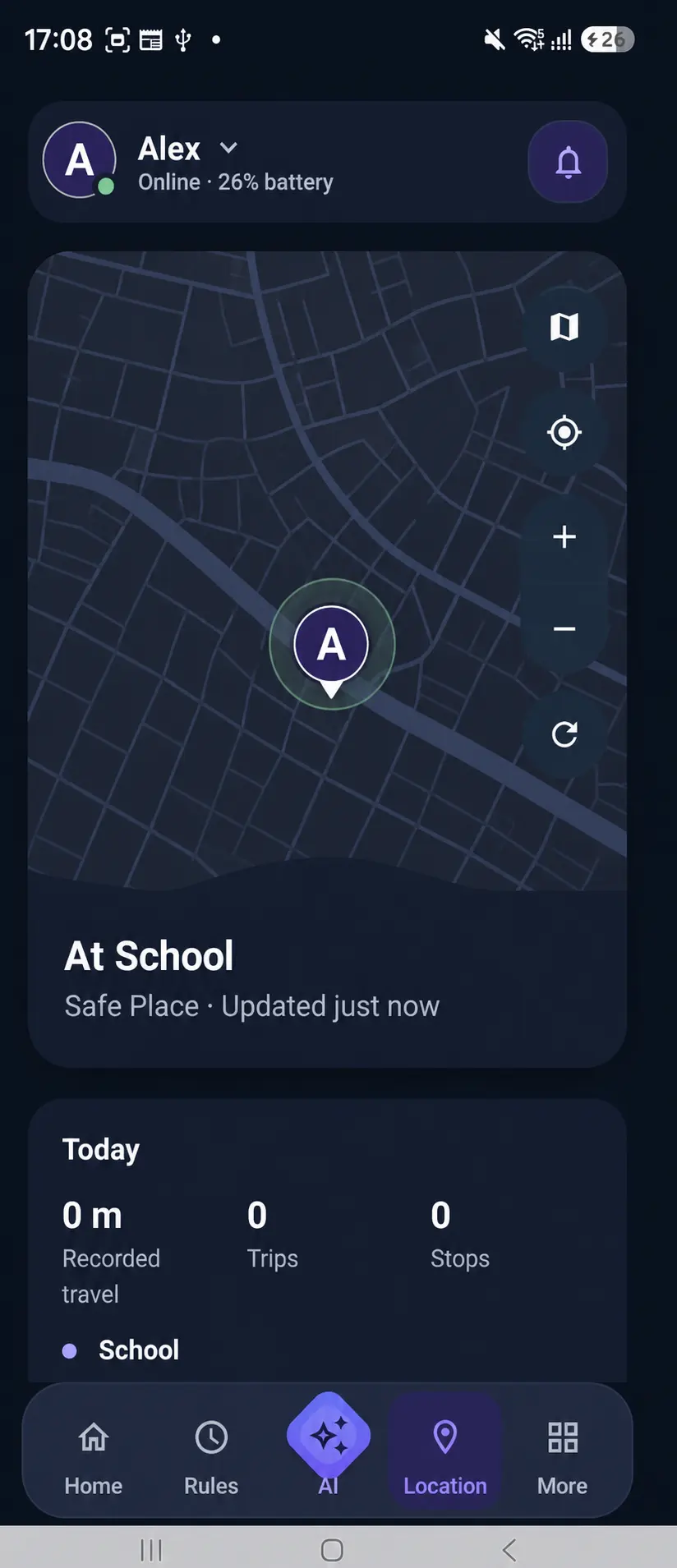
More than a map pin
A current location, a Safe Place arrival, a location history playback, and a meaningful stoppage each serve a different family purpose.
In the Kiddar parent app you can see the child device’s most recently reported location with its update time, request a fresh location, review Location History and Replay with Stoppages, and receive arrival and departure updates for Safe Places and Alert Areas. Locations are sampled reports from the child device, so gaps can appear and a refresh is a request, not a guarantee.
Current Location
Kiddar shows the location state most recently reported from the connected child device, alongside a freshness timestamp so parents understand when that position was recorded.
Location freshness depends on device connectivity, Android permissions, and OS conditions. The displayed position reflects the last reported update—not necessarily a live reading.
Get Kiddar on Android
Install Kiddar from Google Play on the parent’s Android phone, then pair your child’s device to see current location, history and Safe Place arrival updates.
Kiddar Child is installed on your child’s Android device during guided setup. Availability may vary by country.
 Get Kiddar on Google Play
Official Kiddar app for the parent’s phone
Manual Location Refresh
Parents can request a fresh location update from the child device when the displayed position feels too old. This is a request—not a guaranteed instant result. The child device must be connected and the relevant permission active for a refresh to succeed.
Manual refresh is separate from background location recording. Not every request will produce an immediate update.
History & Replay
Review the available recorded positions from the child device over recent time. History reflects what was recorded—not a continuous GPS trail. Gaps may appear where connectivity or permissions were unavailable.
Play back available history to get a sense of the child device's movement over a period. Replay shows recorded evidence—not an inferred or filled-in route. Sections with no recorded data will not appear.
Stoppages identify meaningful dwell periods—places where the device stayed for a notable time. Useful for understanding where the day was spent, without claiming exact timing precision for brief stops.
GPS and network conditions vary. Indoors, weak-signal areas, and permission changes can create gaps. Recorded positions should be understood as evidence, not complete routes.
Safe Places
Save meaningful family places—home, school, grandparents—and receive useful arrival and departure context when the child device enters or leaves a Safe Place geofence. The timestamp stays in view so the information stays honest.

Alert Areas
Alert Areas are distinct from Safe Places. They allow parents to define a boundary and receive a notification when the child device enters or exits the configured area. Alert Areas have their own notification policy and are not the same as a Safe Place arrival or departure update.
Location Sharing
Kiddar supports a one-time location sharing mechanism that allows a parent to share a child's current location with a trusted recipient. The share is time-limited and requires the parent to initiate it. Recipients view only the shared location state—not the full family profile or history.
Sharing requires the parent to initiate the link. Link expiry and recipient access are determined at share time. Sharing does not grant ongoing access.
Everyday family moments
Morning
The family begins the day with the expected device and location settings available. The freshness timestamp shows when the last position was recorded.
School
The school Safe Place geofence triggers a useful arrival update when the child device reaches the saved location.
Later
Location History and Stoppages give a sense of where the day was spent—without claiming to reconstruct a perfect route.
Accuracy & data freshness
GPS and network-based positioning vary significantly by conditions. Indoors, weak signals, and OS-managed background limits all affect what gets recorded.
Location and privacy
Families should understand which device is sharing a location state, why the relevant Android access is requested, and how the chosen safety experience is used. Kiddar is intended for transparent, guardian-led family safety.
Parent questions
The displayed location is the most recently reported position from the connected child device. A freshness timestamp is shown alongside it. Location freshness depends on device connectivity, Android permissions, and OS background conditions.
Yes. Parents can request a fresh location update from the child device. This is a request, not a guaranteed instant result. The device must be connected and the relevant permission active for a refresh to succeed.
No. Location Replay shows the recorded evidence from the child device. Gaps appear where data was unavailable—the replay does not fill in or infer missing sections. Indoor, weak-signal, and permission-off periods may not appear.
Safe Places are saved familiar locations (home, school) that trigger arrival and departure updates. Alert Areas are separately configured boundaries with their own notification policy. The two have distinct behaviors and are not interchangeable.
Location Replay plays back the available recorded location history for a selected period. It shows recorded positions in sequence—not an animated inferred route. Sections with no data will not appear in the playback.
Location and privacy
Families should understand which device is sharing a location state, why relevant Android access is requested, and how the chosen safety experience is used.
Android and device considerations
Check current compatibility, keep the intended device connected, and review the relevant setup guidance before relying on family-safety states.