Complete the parent-app step
The Kiddar family space and intended child profile should already be prepared.
Android setup · Child device
Install Kiddar Child from its official Google Play listing on the child’s Android device. Check device and country availability, then continue with parent-authorized pairing.
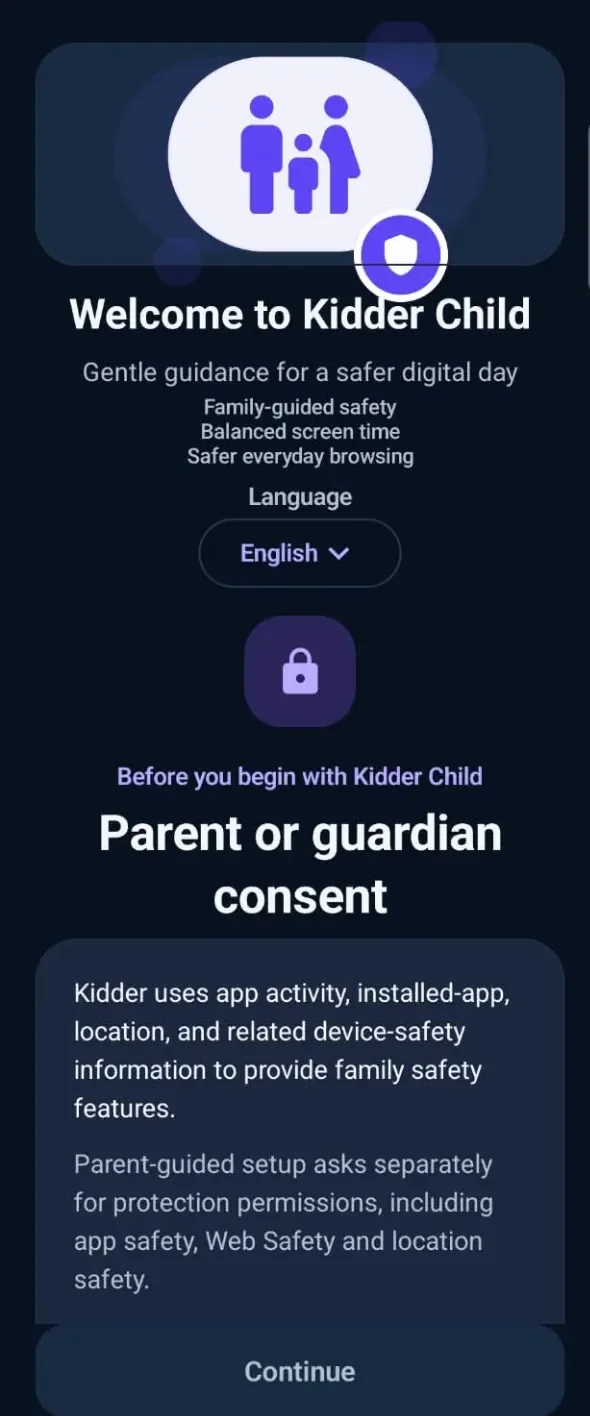
Before this step
The Kiddar family space and intended child profile should already be prepared.
Keep the exact device that will join the family profile in front of you.
Explain that Kiddar Child is being prepared for the family’s chosen routines and protections.
Step by step
Android labels and settings paths can vary by device. Read the wording shown on the device in front of you.
Use Download & Setup to reach the official Kiddar Child Google Play listing. Check the app name and publisher before continuing.
Install only Kiddar Child, published by TECHINSPIRE INTERNATIONAL PRIVATE LIMITED, from the official Google Play listing.
Confirm you are working on the intended Android device and follow its visible welcome and setup instructions with parent or guardian authorization. Read the in-app disclosures before continuing.
Continue to Enter Parent Code and keep the app open. You will enter the 8-digit pairing code from Kiddar on the parent phone in the next guide; do not enter the Parent PIN here.
What you should see
Kiddar Child should be ready for the Parent Code. Initial pairing is followed by Android permission review and a protection check; this screen alone does not mean setup is complete.
If it does not work
Stop before pairing and restart this step on the Android device intended for the child profile.
Check connectivity, available device storage, and current device software before trying the official path again.
Check that you opened Kiddar Child on the intended device and completed the visible welcome steps. Confirm that the intended Child profile is prepared in Kiddar; use the pairing guide next.
Still need help? Contact Kiddar support. Include the app version, Android version and the step that stopped. Do not send passwords, Parent PINs, pairing codes or unnecessary child information.